Blur Shenanigans
My triumphant return to Hyprland
First off, I’m really happy to announce that I’ve been using Hyprland for around a week now. I’d taken a hiatus for a few months. I’d been using KDE Plasma during that time. Not sure what got into me, but I’ve come back to Hyprland. I’m also giving the COSMIC DE a try. I’m on NixOS Unstable, and so I’m daily-driving 1.0.0-beta1 as of time of writing this.
Setting up blur on Zen
I wholly acknowledge SlipStream’s help setting this up. With that out of the way, let’s start!
Get the addon and mod
Grab the Zen internet Firefox addon from here.
In addition to this, you’ll also require the Transparent Zen mod:
Configuration
Ensure that these flags are set in about:config:
| Configuration | Value |
|---|---|
browser.tabs.allow_transparent_browser |
true |
mod.sameerasw.zen_transparent_glance_enabled |
true |
mod.sameerasw.zen_transparent_sidebar_enabled |
true |
widget.transparent_windows |
true |
zen.widget.linux.transparency |
true |
Here’s what the Transparent Zen settings menu looks like (as of time of this post).
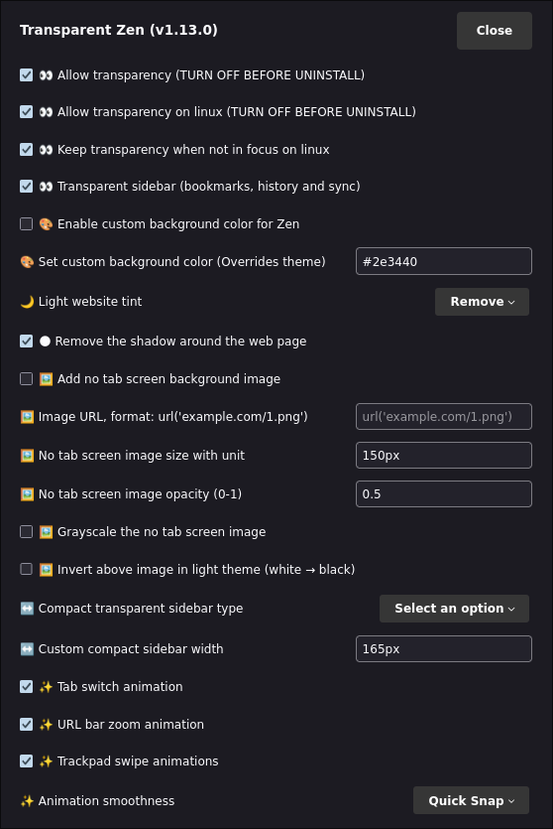
Restart Zen after making these changes.
Configuring your DE/WM
KDE Plasma
Firstly, install the BetterBlur Plasma effect. Since I’m on NixOS, I’ve added this to my config.
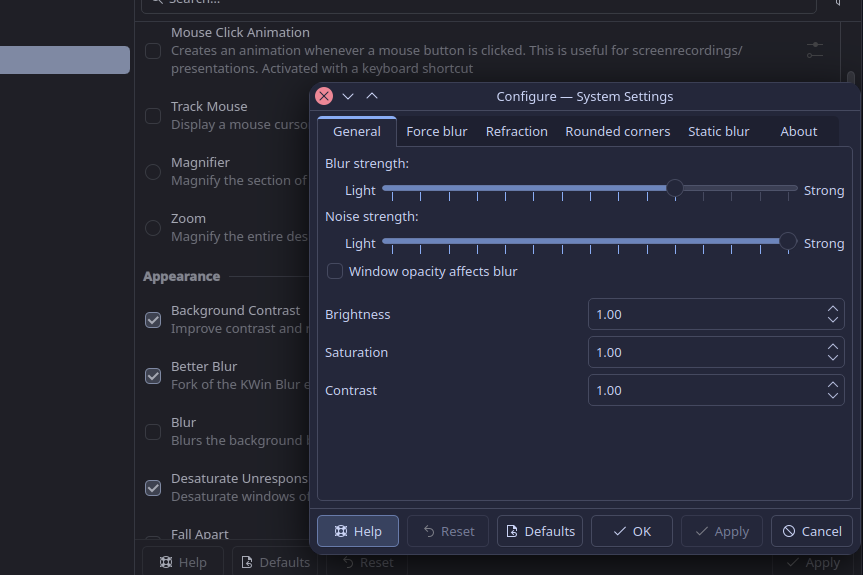
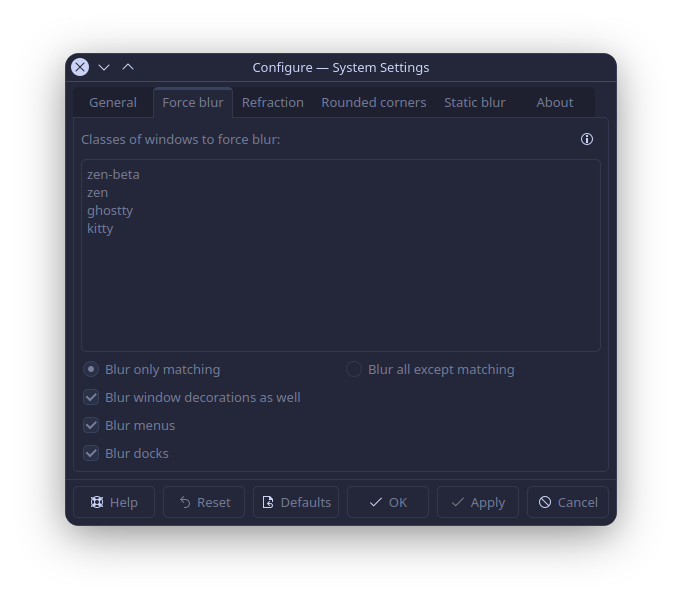
Then I’ve configured blur like so. Note that I’ve disabled the builtin blur effect as it conflicts with the effect we’ve just installed.
Hyprland
Thankfully, it’s rather easy to get this working on Hyprland.
Configure a window rule and change the opacity of all zen windows:
EDIT: It appears you do not need to add the window rule I’ve shown below.
windowrulev2 = opacity 0.95, class:^(${MOZ_APP_LAUNCHER:-zen-beta})$, initialtitle: $(Zen Browser)$ # blur?… and take a look at my blur settings:
blur {
      enabled = true
      size = 6
      passes = 3
      new_optimizations = true
    }
    blurls = zen-beta
    blurls = ghostty
    blurls = vicinae
    shadow {
      enabled = true
      range = 4
      render_power = 3
      color = rgba(1a1a1aee)
   }
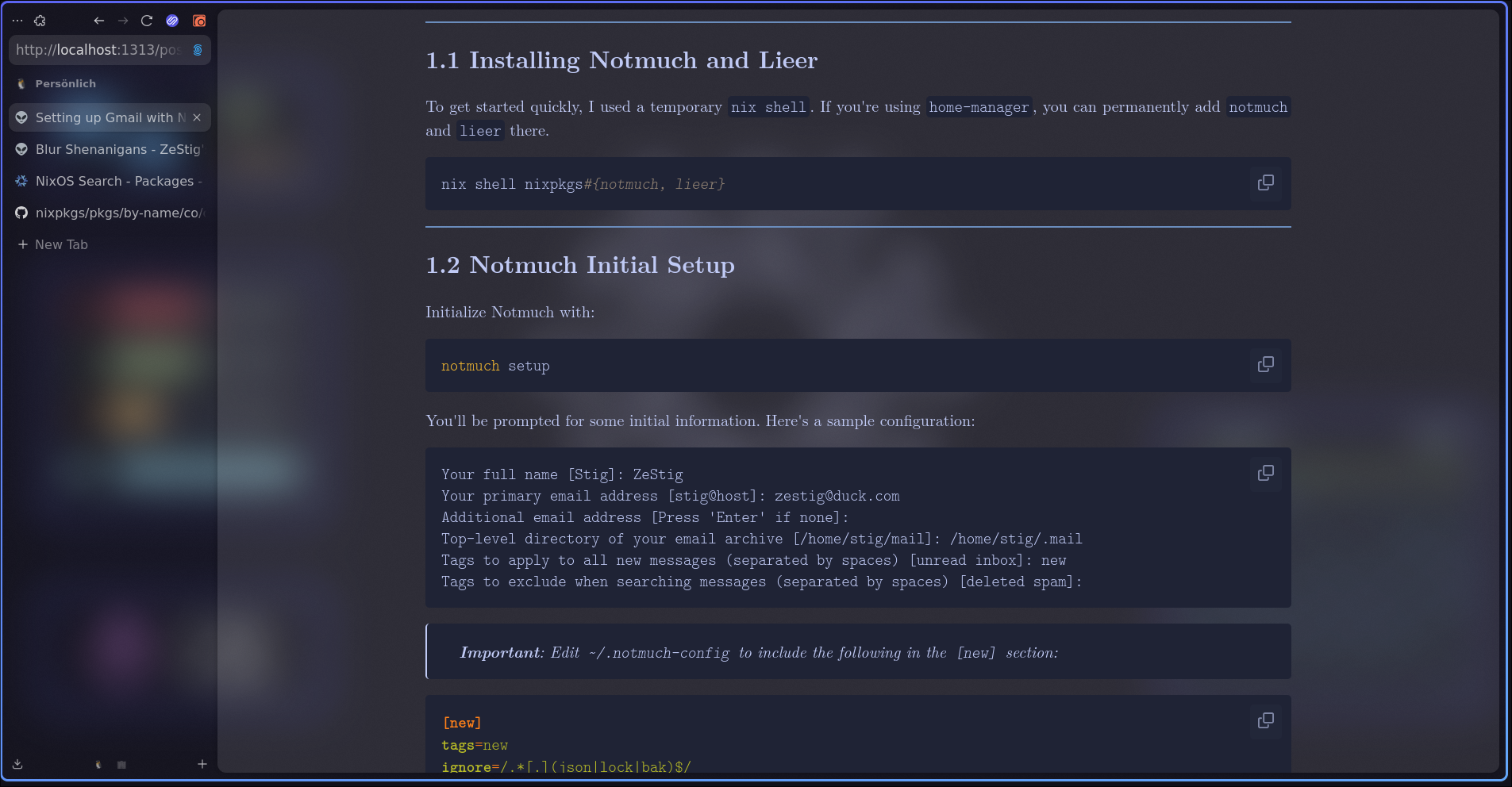
… and the finished setup looks like
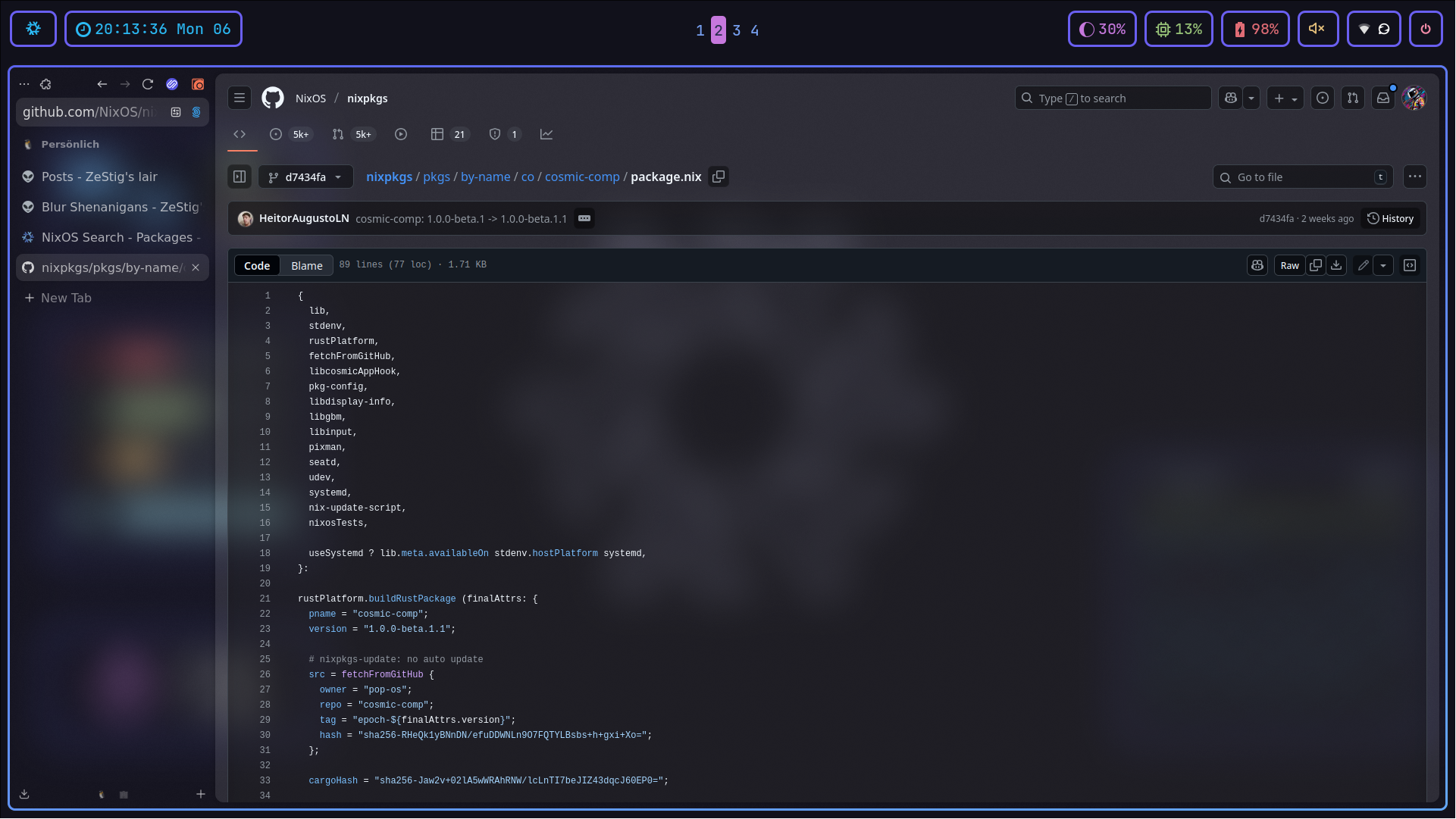
and here’s my own blog (because why not 😉) - link to the post shown here.
Comments
Comments live on the Fediverse. Link a post to its announcement toot with `toot: <url>` in the frontmatter and the reply thread appears here.
@zstg on fedia.social